
To deposit at DINO, log in, open My Page → deposit/withdrawal (입출금), choose Deposit (입금) for bank transfer or Tether Deposit (테더 입금) for USDT (TRC20), enter the amount and send the funds to the account or wallet you are given.
1. Sign up and log in to DINO
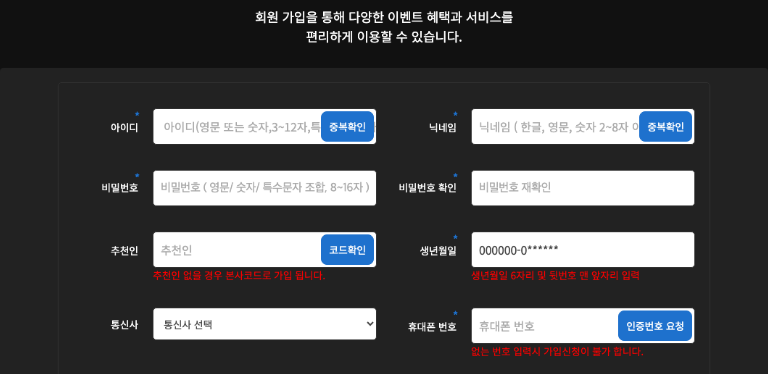 Open whichever DINO domain works, dino-333.com or dino-222.com, and fill in your username, nickname, password, date of birth, carrier and phone verification, plus your bank, account holder name and account number. Enter the promo code bonsa in the referral field and press 'Verify code' (코드확인) so that promo code benefits such as the new-member first deposit event can apply. If you leave the referral field empty you are registered under the house code and the promo code benefits may not apply, so always complete the code check. Log in afterwards and you can request a deposit straight away.
2. Choose Deposit or Tether Deposit in the deposit/withdrawal menu
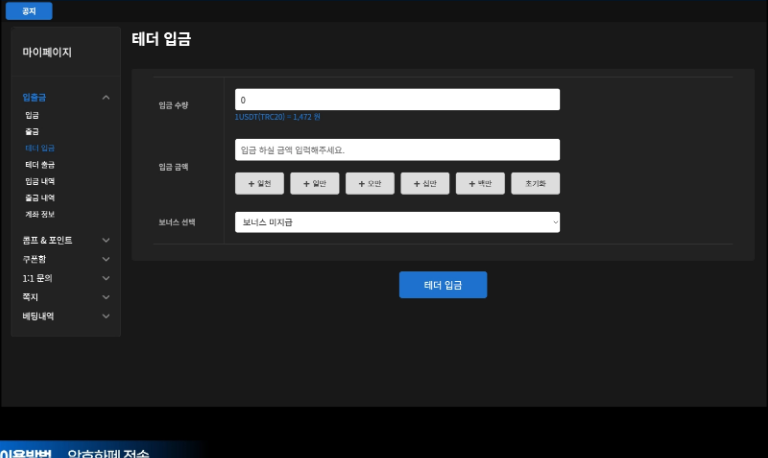
After logging in, the deposit/withdrawal (입출금) menu in My Page lists Deposit, Withdrawal, Tether Deposit, Tether Withdrawal, deposit history, withdrawal history and account info. Choose Deposit (입금) for bank transfer (KRW) or Tether Deposit (테더 입금) for USDT (TRC20). Deposits via an exchange also finish by sending USDT to the wallet address shown on the Tether Deposit screen.
3. Steps for each deposit method
1) Bank transfer (KRW)
On the Deposit screen, enter the deposit amount and submit; the deposit account is shown straight after.
- Send the funds under the account holder name you registered at sign-up; a different name may delay confirmation.
Transfer to the account shown and the funds are credited to your balance once confirmed.
2) Cryptocurrency (USDT TRC20)
On the Tether Deposit screen, enter the USDT quantity or the KRW amount (converted automatically at the TRC20 rate), pick the event to apply in the bonus selection field (or no bonus) and press Tether Deposit.
- Always confirm that the wallet address and the network (TRC20) shown match before you send. Transfer fees are deducted at the network rate.
Send to the wallet address shown and the deposit completes once the network confirms it.
3) Via an exchange
Buy coins with KRW on a Korean exchange, transfer them to an overseas exchange such as Binance, swap them to USDT (TRC20) and send them to the DINO wallet address shown on the Tether Deposit screen.
- The DINO user guide lays out the domestic exchange → overseas exchange → DINO wallet route step by step, so you can follow it exactly as written.
Your deposit completes once the transfer is confirmed; if it is delayed, contact customer support.
To withdraw from DINO, log in to the DINO site, open My Page → deposit/withdrawal, choose Withdrawal (출금) for bank transfer or Tether Withdrawal (테더 출금) for USDT (TRC20), check your balance and enter the amount (or USDT quantity); funds are paid to the bank account or wallet you registered at sign-up.
1. Log in to DINO and choose Withdrawal or Tether Withdrawal
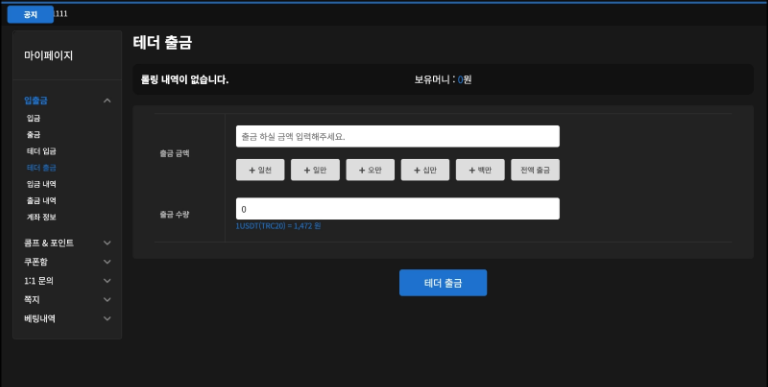 After logging in to the DINO site, open the deposit/withdrawal menu in My Page and choose Withdrawal (출금) for bank transfer (KRW) or Tether Withdrawal (테더 출금) for USDT (TRC20).
The top of the withdrawal screen shows your rolling history and balance, and you can also watch live withdrawal activity in the widget on the DINO main page.
- Bank transfer withdrawals are paid to the bank, account holder and account number you registered at sign-up.
- Crypto withdrawals are paid to the coin type and wallet address you registered at sign-up.
2. Check your balance and enter the withdrawal amount
Withdrawals are requested either under Withdrawal (bank transfer, KRW) or Tether Withdrawal (USDT TRC20). Withdrawing via an exchange has no separate menu: you make a Tether Withdrawal, then move the USDT from an overseas exchange to a Korean exchange and convert it to KRW. Enter an amount within your balance (on Tether Withdrawal you also enter and confirm the USDT quantity) and check that no rolling requirement is still outstanding at the top of the screen.
3. Steps for each withdrawal method
1) Bank transfer (KRW)
On the Withdrawal screen, enter the withdrawal amount and submit; the KRW is paid to the bank account you registered at sign-up.
2) Cryptocurrency (USDT TRC20)
On the Tether Withdrawal screen, enter the withdrawal amount or USDT quantity and submit.
- Funds are sent to the wallet address and network (TRC20) you registered at sign-up, and a network fee may be deducted.
3) Via an exchange
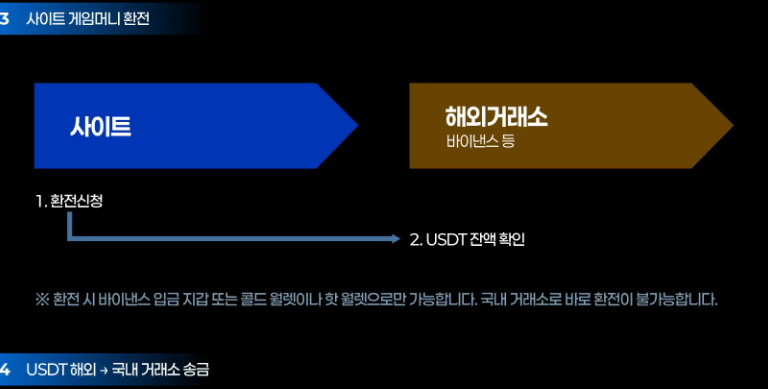
After the Tether Withdrawal (exchange request), check the USDT balance on the overseas exchange such as Binance, then send it to a Korean exchange and convert it to KRW. It is the deposit route in reverse: DINO wallet → overseas exchange → domestic exchange.
- According to the DINO user guide, the exchange can only go to a Binance deposit wallet or a cold/hot wallet; a direct exchange to a Korean exchange is not possible.